Install Nighthawk WiFi
Nighthawk App
Nighthawk app helps users to configure Nighthawk Series Routers/Extenders and Modems via Nighthawk mobile app itself. Moreover users can manage advanced Router settings,Wi-Fi Settings, guest Network,Firmware Update,Speed Test,parental Control and many more features from the mobile app itself.
Nighthawk app can be downloaded from Apple App store for iOS devices and Google Play store for Android devices. The Nighthawk app is not available for PC/Laptop Windows devices. Users can manage Router settings via the Default IP address of the Nighthawk Router i.e 192.168.1.1 in case of Windows PC or Laptop.
Nighthawk App lets users manage and set up Routers and Extenders from the Mobile Device. Nighthawk App can be Downloaded from Apple or Google Play Store. The Nighthawk App is a powerful mobile application that allows users to conveniently manage and control their Nighthawk series routers and range extenders. With its user-friendly interface and comprehensive features, the Nighthawk App provides an intuitive way to monitor and customize your Wi-Fi network settings.
The Nighthawk App simplifies the process of configuring and managing your Nighthawk devices. With just a few taps on your smartphone, you can set up your router or range extender and customize wireless settings, such as network name (SSID) and password. This eliminates the need to access the router’s web interface through a computer, making it more convenient for users.
Nighthawk WiFi App Features
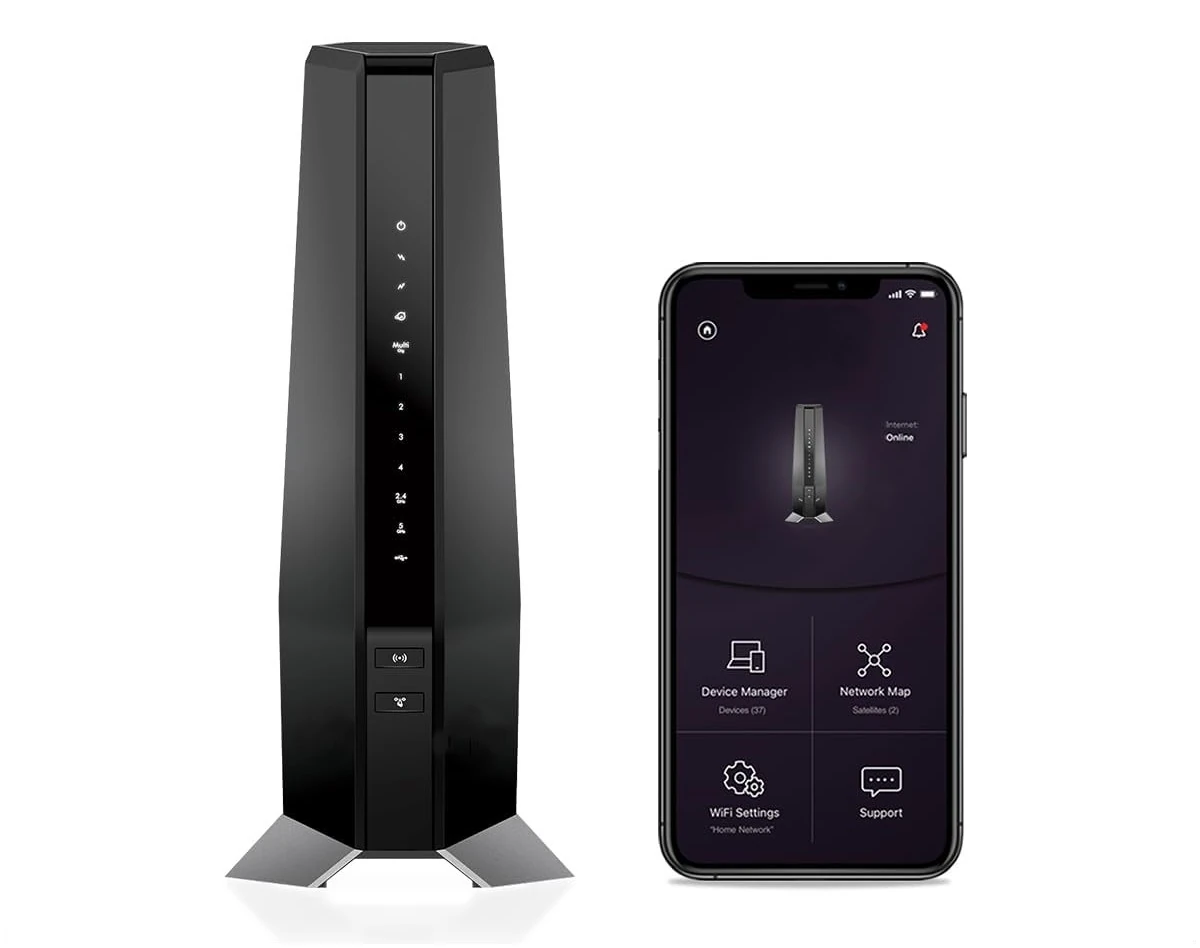
Manage your Nighthawk router and extender, check performance, and adjust the settings that keep your network running your way.
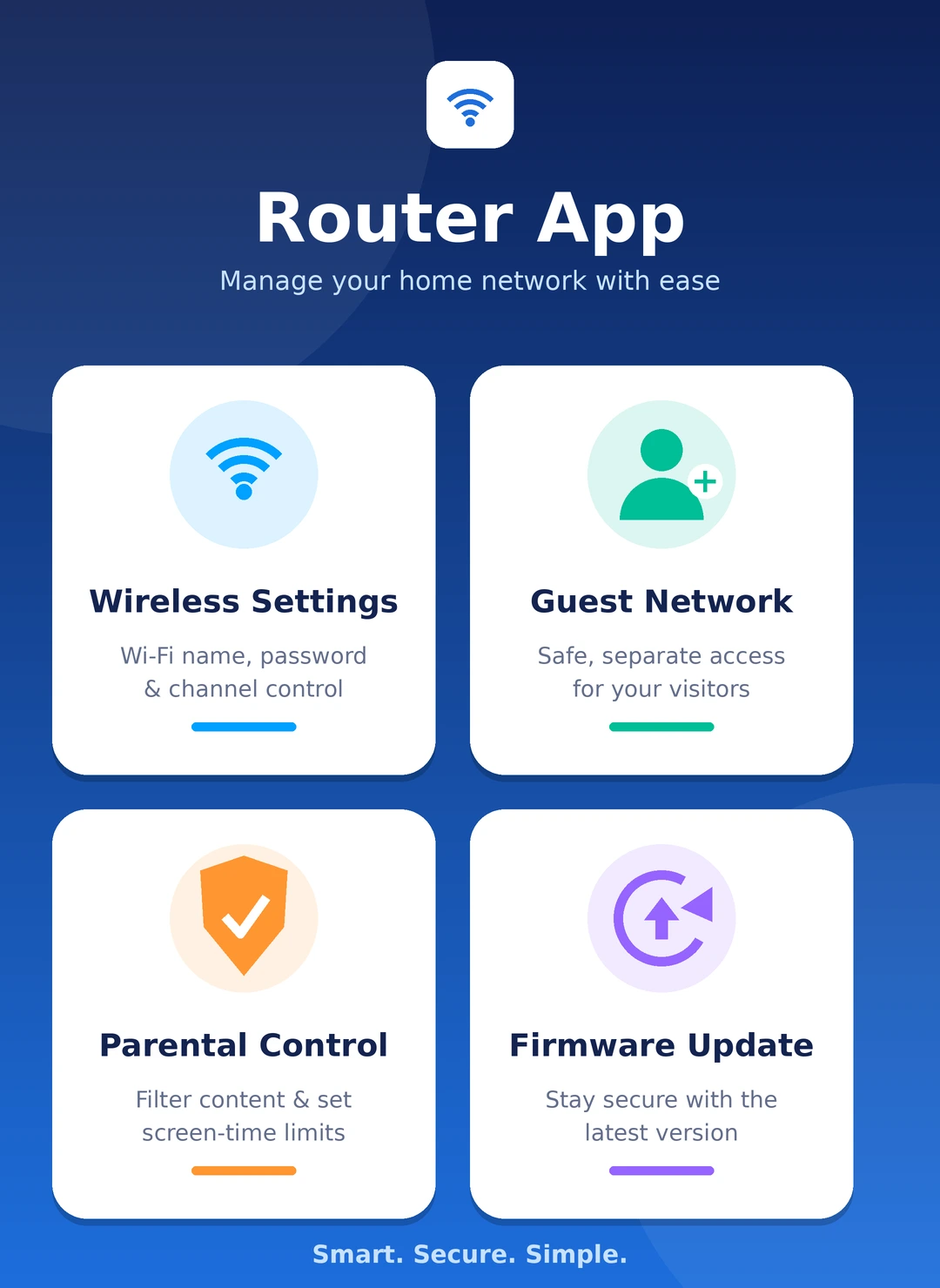
Wi-Fi Settings
Update your network name and password from your phone without navigating router menus.
Guest Network Access
Create a separate Wi-Fi network for visitors while keeping your main network credentials private.
Updates and Speed Tests
Check for router firmware updates and run speed tests to see how your internet connection is performing.
Parental Controls
Manage connected devices and available parental control settings to help guide how your family uses Wi-Fi.
Set Up Your Nighthawk Wi-Fi 7 Router in Three Steps
1
Connect Your Router and Phone
2
Create Your Nighthawk ID
3
Customize Wi-Fi and Enable Updates
Nighthawk Wi-Fi 7 Router Setup using Nighthawk App
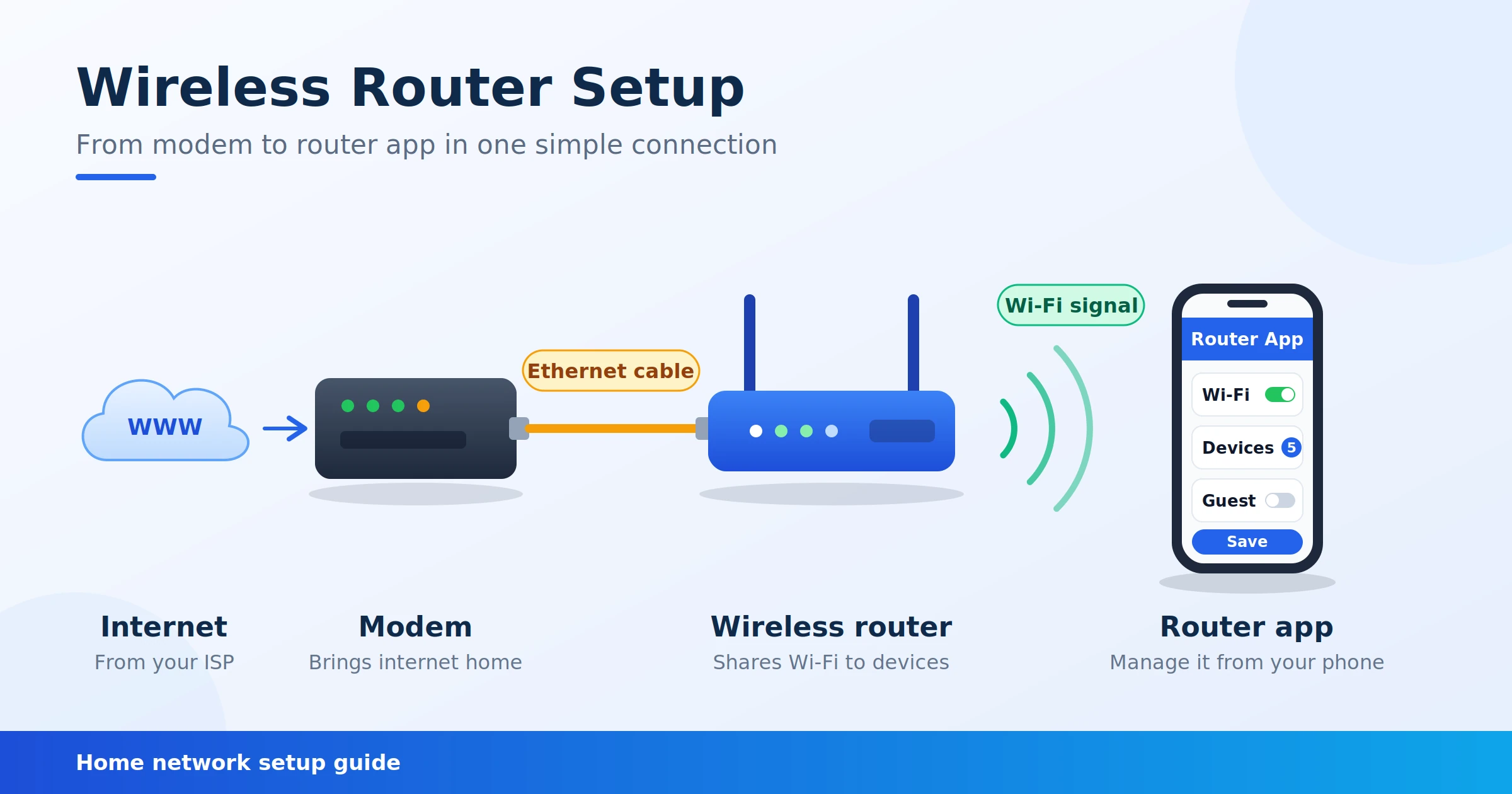
Nighthawk Wireless Routers can be configured with the help of the Nighthawk app, from Mobile Device. Nighthawk Wi-Fi 7 technology RS Series Routers are well known these days for their ultimate Speed and Coverage. Setup of NIghthawk Wi-Fi 7 technology Routers can be done by following below mentioned steps:
- Turn on New Nighthawk Router, Connect Power adapter to new Nighthawk Wireless Router, disconnect Old Router, if any.
- Connect Ethernet Cable from Internet WAN Slot of Nighthawk Router to Internet service provider Modem.
- Reboot/Power Cycle Internet Provider Modem and New Nighthawk Router.
- Wait for the Lights to turn Solid on Modem and New Nighthawk Router.
- Download Nighthawk app from Apple App store for Apple iOS devices and in case of Android devices users can download Nighthawk App from Google Play Store.
- Launch Nighthawk App, connect your mobile device with Nighthawk Router wireless SSID and Network password, as mentioned on Nighthawk Router label or WiFi configuration Card.
- Create Nighthawk ID, verify Email address and then click on Add a Wireless Router Option.
- Select Internet Connection Type as per Internet company, then change Wireless Network Name SSID and Wireless password.
- Follow on screen instructions to complete the setup process using Nighthawk mobile app.
- Make sure Router Firmware is up to date, for optimal performance. Select Auto Firmware update feature so that Nighthawk Router firmware can be updated, whenever a new version is released from the server end.
New Extender Setup using Nighthawk App
A Wi-Fi Extender is a great device for extending the range and coverage of your wireless network. To set up your Extender, you can use the Nighthawk app, which provides a user-friendly interface and makes the process quick and easy.
Step 1: Connect to the Extender
First, connect your mobile device to the Wi-Fi network that you want to extend using the Extender. Open the Nighthawk app on your device.
Step 2: Discover the Extender
After opening the Nighthawk app, it will automatically detect your extender. Tap on the ‘Discover’ button to initiate the setup process.
Step 3: Configure the Extender
Once the app has discovered your Extender, it will display a list of available Wi-Fi networks. Select the network that you want to extend and enter the password if required. You can also change the SSID (network name) and password for the extended network if desired.
Step 4: Finalize the Setup
After configuring the settings, tap on the ‘Next’ button to finalize the setup. The Nighthawk app will apply the changes and connect your Extender to the selected Wi-Fi network. Once the setup is complete, you can disconnect your mobile device from Extender and enjoy the extended network coverage.
Setting up a Nighthawk series Extender using the Nighthawk app is a simple and convenient process. With just a few steps, you can extend the range of your Wi-Fi network and improve the connectivity in your home or office. Whether you need to boost the signal in a specific area or cover a larger area, a wireless extender and the Nighthawk app make it easy to achieve.
Where You Can Use the Nighthawk App
- iPhone: download the app from the Apple App Store
- iPad: use the iOS app for mobile setup
- Android phone: install it from Google Play
- Android tablet: follow setup on a larger screen
- Compatible Nighthawk routers: configure through the mobile app
- Compatible Nighthawk extenders: complete guided setup on mobile
- Connect your phone or tablet to the router’s Wi-Fi
- Sign in with your Nighthawk ID
- Update your Wi-Fi network name
- Change the wireless password
- Manage guest network access
- Check for available firmware updates
- Windows PCs do not have a Nighthawk mobile app
- Windows laptops use the router’s web interface instead
- Connect the computer to your Nighthawk router
- Enter 192.168.1.1 in a web browser
- Sign in with your router admin credentials
- Manage router settings from the browser dashboard
Nighthawk App: Frequently Asked Questions
Find quick answers about app downloads, device setup, firmware updates, and managing your network.
Where can I download the Nighthawk app?
Download the Nighthawk app from the Apple App Store for iPhone or iPad, or from Google Play for Android devices.
How do I set up a Nighthawk router with the app?
Connect your router to your modem and power it on. Join the router’s Wi-Fi network from your phone, open the Nighthawk app, and follow the prompts to configure your internet connection and Wi-Fi settings.
Can I set up a Nighthawk extender in the app?
Yes. Open the app on your mobile device, discover your extender, choose the Wi-Fi network you want to extend, and follow the prompts to finish setup.
Does the Nighthawk app support Wi-Fi 7 routers?
The app can guide setup for supported Nighthawk Wi-Fi 7 RS Series routers. Connect your phone to the router’s Wi-Fi network, then follow the in-app instructions for your model.
How do I update my router’s firmware?
Check for available firmware updates in the Nighthawk app’s router settings. You can also enable automatic updates, if your model offers that option, to help keep your router up to date.
Can I use the Nighthawk app on a Windows computer?
No. The Nighthawk app is available for iOS and Android, not Windows. From a Windows computer connected to your router, you can manage router settings through a web browser at 192.168.1.1.
Configure Nighthawk WiFi 6 Router
Setting up your router using the Nighthawk app is a convenient and user-friendly way to get your network up and running. The Nighthawk app provides a simple and intuitive interface that allows you to easily manage and configure your router settings. In this guide, we will walk you through the process of setting up your router using the Nighthawk app. Download the Nighthawk app from the Apple App Store or Google Play, then follow the router or extender setup instructions for your device to get connected.
STEP1: NIGHTHAWK APP INSTALLATION
The first step is to download and install the Nighthawk app on your mobile device. The app is available for both iOS and Android devices and can be downloaded from the respective app stores. Once you have downloaded the app, proceed to the next step.
Step 2: Connect to your Router Network
Make sure that your mobile device is connected to the Wi-Fi network that is already being broadcasted by your router. Open the Nighthawk app and it will automatically detect the router that you are currently connected to. Tap on the router name to establish a connection.
Step 3: Configure Router Settings
Once you are connected to your router through the Nighthawk app, you will have access to a wide range of settings and configurations. You can set up your Wi-Fi network name and password, manage connected devices, enable guest networks, and much more. Take some time to explore the app and customize the settings according to your preferences.
Step 4: Additional Features
The Nighthawk app also offers additional features that can enhance your network experience. You can enable parental controls to restrict access to certain websites, set up a VPN server for secure remote access, and configure advanced network settings such as port forwarding and DHCP reservation. These features allow you to have greater control over your network and ensure a secure and optimized connection.
Setting up your router using the Nighthawk app is a hassle-free process that gives you full control over your network. The app’s intuitive interface and comprehensive features make it easy to customize your router settings according to your needs. Whether you want to set up a secure Wi-Fi network, manage connected devices, or configure advanced network settings, the Nighthawk app has got you covered. Download the app today and enjoy a seamless and personalized network experience.